
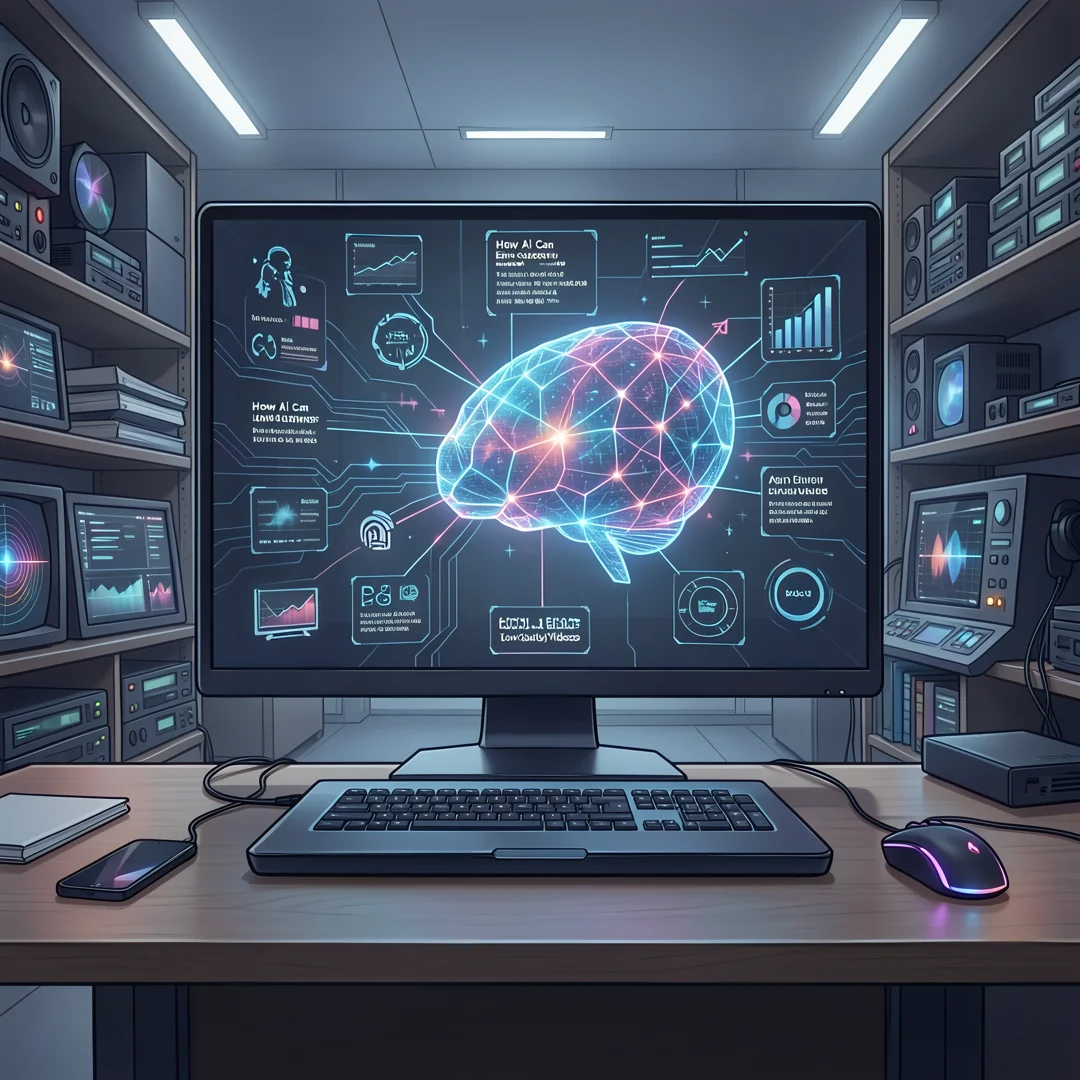
Not every video you need is shot in perfect 4K. Whether it’s an old family recording, a shaky phone clip, or a blurry surveillance file, low resolution doesn’t have to mean low value. That’s where AI can help you enhance low-quality videos without expensive equipment or advanced editing skills.
In this guide, we’ll explore how artificial intelligence sharpens blurry footage, removes noise, boosts resolution, and restores detail in minutes. You’ll learn practical tools and simple steps to turn flawed clips into clean, watchable content—no tech background required.
Introduction
Low-quality video is a familiar frustration. Footage shot on an older phone, a webcam from a decade ago, or a compressed file downloaded from a messaging app often looks soft, blocky, noisy, or washed out. In the past, fixing that footage required professional editing software, a powerful computer, and hours of manual correction. Today, artificial intelligence changes the equation entirely. AI models trained on millions of images and video frames can upscale resolution, remove noise, sharpen edges, stabilize shaky motion, and even reconstruct detail that was never clearly captured. This article explores how AI can enhance low-quality videos with clear, practical guidance you can apply right away.
Key Concepts
Before choosing a tool or pressing a button, it helps to understand what AI is actually doing to your video. Most AI video enhancement falls into a few broad categories, each solving a different problem.
- Super-resolution (upscaling): AI models such as ESRGAN and its video-oriented relatives predict missing pixels and generate plausible detail, turning a 480p clip into something that looks closer to 1080p or 4K. Unlike traditional stretching, which just blurs pixels, AI upscaling synthesizes new information.
- Denoising: Grain, sensor noise, and compression artifacts are removed while edges are preserved. AI distinguishes between random noise and real texture, which is why results usually look cleaner than simple blur filters.
- Deblurring and sharpening: Motion blur and focus softness can be partially reversed. The model learns patterns of blur and estimates the sharper original.
- Stabilization: AI analyzes frame-to-frame motion and smooths camera shake, often with less cropping than older stabilizers.
- Frame interpolation: New frames are generated between existing ones to raise the frame rate, making motion look smoother.
- Color and exposure correction: Some tools automatically fix white balance, contrast, and dynamic range, brightening dark scenes without blowing out highlights.
Understanding these fundamentals of how AI can enhance low-quality videos helps you make informed decisions. If your problem is noise, an upscaler alone may disappoint you. If your problem is resolution, denoising first often gives better results. Matching the tool to the defect is the single most important skill in this workflow.
Deep Dive
AI video enhancement works because neural networks learn statistical patterns. During training, a model sees millions of pairs: a degraded image and its clean original. Over time, it learns to reverse the degradation. When you feed it your old footage, it applies that learned mapping frame by frame.
This approach has real strengths. It can recover text, faces, and fine textures that traditional filters cannot. It runs on consumer hardware, and many tools are free or inexpensive. But it also has limits you should know about.
- Hallucination: AI can invent detail that was never there. A blurry face may come back looking like a different person. For legal, archival, or forensic use, this matters enormously.
- Temporal flicker: Because models often process frames individually, results can shimmer or wobble between frames. Video-aware models reduce this but rarely eliminate it.
- Over-smoothing: Aggressive denoising can make skin look like plastic and erase legitimate film grain.
- Processing cost: High-quality 4K upscaling can take hours on a laptop and may require a decent GPU.
Reliable information and consistent habits lead to better long-term outcomes. That means testing settings on short clips before committing to a full render, keeping your original files untouched, and comparing results side by side rather than trusting a single glance.
It also helps to think in passes. A typical professional workflow applies denoising first, then stabilization, then upscaling, then color correction. Each pass builds on a cleaner input, and the final result is noticeably better than trying to do everything at once.
Best Practices
Good results come from process, not just software. Keep these habits in mind.
- Always work from the highest-quality source you have. Re-download the original file rather than re-encoding an already compressed copy.
- Test on a 10-second clip. Render times add up fast; validate settings before a full run.
- Denoise before upscaling. Noise gets amplified when you enlarge an image.
- Use moderate settings. The maximum sharpening or upscaling value is rarely the best-looking one.
- Preserve the original. Never overwrite your source file. Keep versions so you can compare.
- Watch at normal speed. Pause-and-scrub hides flicker; playback reveals it.
- Be honest about purpose. For a family video, aggressive enhancement is fine. For evidence or journalism, disclose any AI processing.
Step-by-Step Guide
Here is a practical sequence you can follow with almost any AI video enhancement tool.
Step 1: Understand the fundamentals
Identify what is wrong with your video. Is it low resolution, noisy, shaky, blurry, or dark? Write down the one or two biggest problems. This determines which AI features you actually need and prevents wasted effort on irrelevant processing.

Step 2: Assess your starting point
Check the technical details of your source file: resolution, frame rate, bitrate, and codec. Look at a few frames closely. Note whether the footage is interlaced, whether audio is out of sync, and whether the damage is uniform or only in certain scenes. A short clip from the middle often reveals issues the opening scene hides.
Step 3: Set clear goals
Decide what “good enough” means for your project. A social media clip may only need to look clean on a phone screen at 1080p. A documentary insert may need to hold up on a large display. Clear goals keep you from over-processing and help you stop at the right moment.

Step 4: Gather necessary resources
Choose your tools. Options range from free open-source projects to paid desktop apps and cloud services. Check that your computer meets the GPU and RAM requirements, or budget time for cloud rendering. Make sure you have enough storage, since enhanced files are much larger than the originals.
Step 5: Apply the core methods
Run the enhancement in order: denoise, stabilize, deblur, upscale, then color correct. Preview each stage, adjust intensity, and re-render if needed. When you are satisfied, export at a high bitrate and review the final file on the device your audience will use.
FAQ
What should I know about How AI Can Enhance Low-Quality Videos?
The most important thing to know is that AI enhancement is predictive, not magical. It estimates missing detail based on patterns it learned during training. That means results vary by content, and the model can occasionally invent detail that was not in the original. It works best on mild-to-moderate degradation and struggles with severely damaged footage. Always keep your source file and compare before and after.
Who is this guide for?
This guide is for anyone who wants to improve old, compressed, or poorly shot video without hiring a professional editor. That includes home users digitizing family tapes, content creators working with phone footage, small business owners polishing marketing clips, and students or researchers handling archival material. No prior editing experience is required, though basic familiarity with video files helps.
Conclusion
AI has made video restoration and enhancement accessible to almost anyone with a computer. By understanding the core techniques, matching tools to specific defects, and following a consistent multi-pass workflow, you can turn watchable-but-rough footage into something genuinely presentable. Start small, test often, and keep your originals safe. With a bit of patience and the right process, even decade-old clips can look surprisingly good.
Frequently Asked Questions
What should I know about How AI Can Enhance Low-Quality Videos?
This guide covers the essentials of How AI Can Enhance Low-Quality Videos with practical steps you can apply right away.
Who is this guide for?
Anyone looking for a clear, structured overview without unnecessary complexity.
You now have a solid foundation for How AI Can Enhance Low-Quality Videos. Apply the best practices above and revisit this guide as your needs evolve.